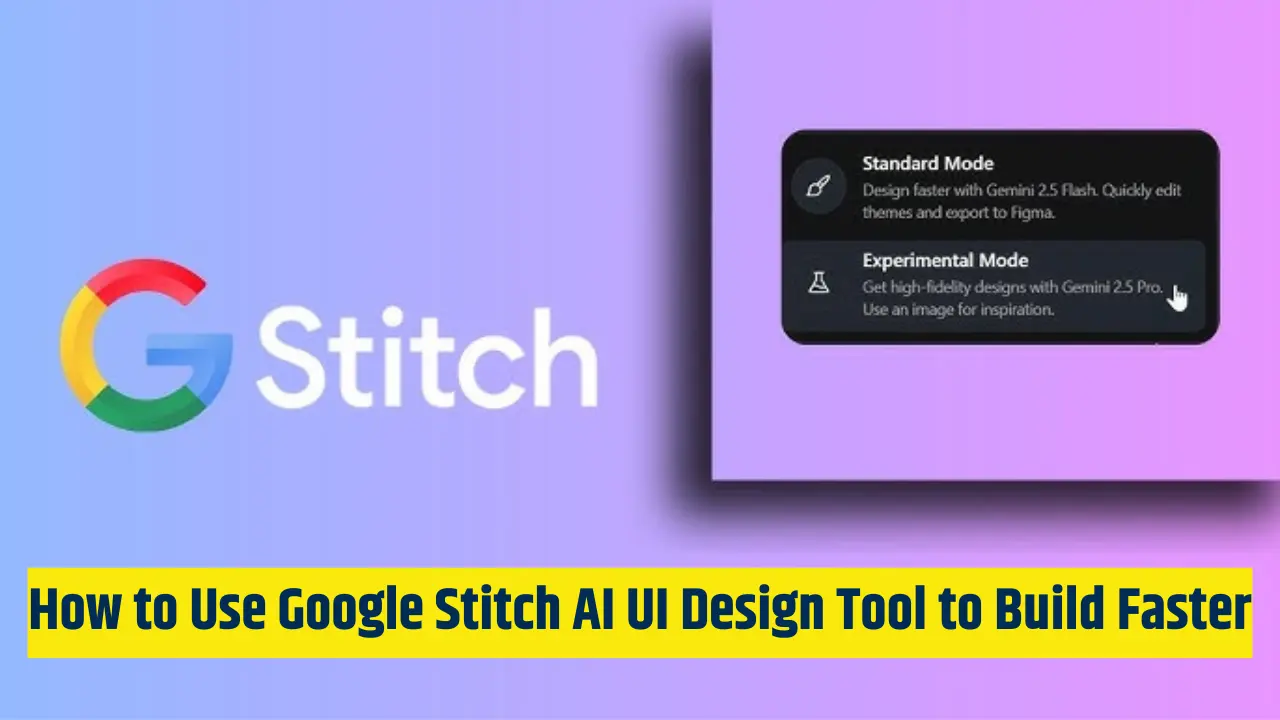
Google Stitch AI: If you have ever struggled to turn a rough app idea into a clean, usable interface, you are not alone, I’ve been there too. I remember staring at a blank canvas, knowing exactly what I wanted to build but not being able to visualize it quickly. That’s exactly where Google Stitch comes in.
From my experience using it, Stitch has evolved into a powerful AI-first design workspace in 2026 that helps you go from idea to UI in minutes. Instead of manually designing every element, you can describe what you want, refine the output, and move it directly into your workflow.
What I have found is that it’s not just about speed, it’s about removing friction from the entire design process. And if you approach it the right way, you’ll notice how much easier it becomes to turn ideas into actual interfaces.
In this article, I will walk you through exactly how I use it, what actually works, and how you can apply the same approach to speed up your own design workflow.
What is Google Stitch AI and why it matters
Google Stitch is an AI-powered UI design tool that converts natural language prompts, images, or sketches into functional user interface layouts. Think of it as a smart assistant that understands both design and structure.
What makes it stand out is how it bridges three major steps:
- Idea → UI concept
- UI concept → refinement
- Refinement → developer-ready output
In my experience, most tools handle one or two of these steps well. Stitch tries to cover all three, which is why it’s gaining attention.
How to use Google Stitch AI UI Design Tool
If you want to get real value from Stitch, you need to use it strategically, not just type a prompt and hope for magic. Here’s a practical workflow that actually works for me.
1) Start with a focused prompt
The quality of your result depends heavily on how you describe your idea.
Instead of saying:
“Create a dashboard”Try:
“Create a modern web dashboard for a fitness tracking app with weekly progress charts, calorie stats, and a clean minimalist layout”
The more context you give, the better Stitch understands your intent.
2) Use images or sketches when possible
One of the most underrated features is the ability to upload visual references. You can:
- Upload a hand-drawn wireframe
- Use a screenshot from another app
- Provide an old design you want to improve
I have found that combining text + image gives significantly better results than using text alone.
3) Iterate using conversational refinement
This is where Stitch becomes powerful. Instead of redesigning manually, you can say things like:
- “Make the header smaller and cleaner”
- “Increase spacing between sections”
- “Use a darker theme”
It feels more like collaborating with a designer than using a tool.
4) Export to Figma or code
A major advantage is Google Stitch to Figma integration. You can move your generated UI directly into Figma and continue refining with your team.
It also generates frontend-ready code, which is helpful if you are working with developers or building solo.
Google Stitch AI examples you can try today
If you are not sure where to start, here are some practical Google Stitch Ai examples that work well:
- Landing page for a SaaS product
- Mobile onboarding screens
- Admin dashboards
- Profile or settings pages
- E-commerce product pages
Personally, I have found it most useful for:
- Early-stage prototypes
- Client presentations
- Testing multiple design directions quickly
Instead of spending hours designing one version, you can explore five variations in the same time.
is Google Stitch AI Free?
A common question is: Is Google Stitch AI free?
As of now, there isn’t a clearly defined public pricing structure available everywhere. Since Stitch is still evolving, access and usage limits may vary depending on region and account type.
So while some users may get access without direct cost, you should always check the latest availability in your region before relying on it for long-term projects.
Google Stitch AI pricing
Although Google Stitch Ai pricing isn’t fully standardized yet, it’s likely to follow patterns similar to other AI tools:
- Free tier with limitations
- Paid tier for advanced features
- Possible integration with other Google AI services
If you are planning to use it professionally, it’s smart to stay updated as pricing models become clearer.
Google Stitch alternative
While Stitch is powerful, it’s not perfect for every situation. A Google Stitch alternative may be better if you need:
- Advanced design systems
- Deep collaboration features
- Pixel-perfect control over every element
Traditional design tools still have an edge in complex, large-scale projects. That said, I see Stitch as a speed tool, not a replacement. It’s best used at the beginning of the design process, not the end.
Google Stitch available countries
Another common concern is Google Stitch available countries. Because it’s still evolving, availability can differ depending on your location and account access. Some regions may get early access, while others may have limited functionality.
If you can’t access it yet, it is likely a rollout issue rather than a permanent restriction.
Stitch by Google download: do you need it?
Many people search for Stitch by Google download, but here’s the reality:
Stitch is primarily a web-based tool. You don’t need to install anything. Just access it through your browser, which makes it:
- Easier to use across devices
- Faster to update
- More flexible for teams
Pro tips to build faster with Google Stitch
Over time, I have refined a workflow that consistently helps me move faster and more efficiently using Google Stitch.
From my hands-on experience using it daily across multiple projects, here’s what actually makes a difference:
- I start every project with a clearly defined use case instead of a vague idea. This keeps the output focused and usable.
- I combine text prompts with visual references to improve accuracy and reduce iteration time.
- then, I intentionally generate multiple variations to evaluate different directions before committing.
- I use Google Stitch primarily for ideation and early-stage exploration, not final design polish.
- Finally, I export concepts early and complete refinement in my primary design tools where I have more control.
These small habits can easily cut your design time in half.
Final Words
From my experience using Google Stitch regularly, I’ve seen how dramatically it can change the way ideas turn into real interfaces. The biggest shift for me was no longer feeling stuck at the starting point that initial blank canvas simply isn’t a bottleneck anymore.
If you use it the right way, it won’t replace your creativity, it will amplify it. That’s been the key difference in my workflow.
What I have learned is that the real advantage isn’t just speed. It’s the freedom to explore more ideas, test different directions quickly, and make better design decisions without getting stuck in the process.
And if you apply these same principles in your workflow, you will notice the same shift. In 2026, building faster isn’t just about moving quickly, it’s about thinking better, iterating smarter, and using the right tools to support your creativity.
READ ALSO:

I am Kunal Kumar, a software engineer and the founder of AI Squaree. With over 5 years of blogging experience and hands-on testing of AI tools, I share practical, experience-based insights to help readers make smarter decisions in the fast-evolving AI space.